Fill Google Forms Automatically for Free With GPM Automate
Prepare your list, ask AI to build a GPM Automate script, test a few entries and send error logs back to AI for help.
You can fill Google Forms automatically for free with GPM Automate. Ask AI to build a script, give it your list and let it handle the repeated typing. You do not need to write code yourself: explain the task and test the result.
You have a list of registrations to enter into a Google Form. Copy a name, paste an email, pick an option and submit. Then do it all again for the next person. It gets tiring, and it is easy to mix up details.
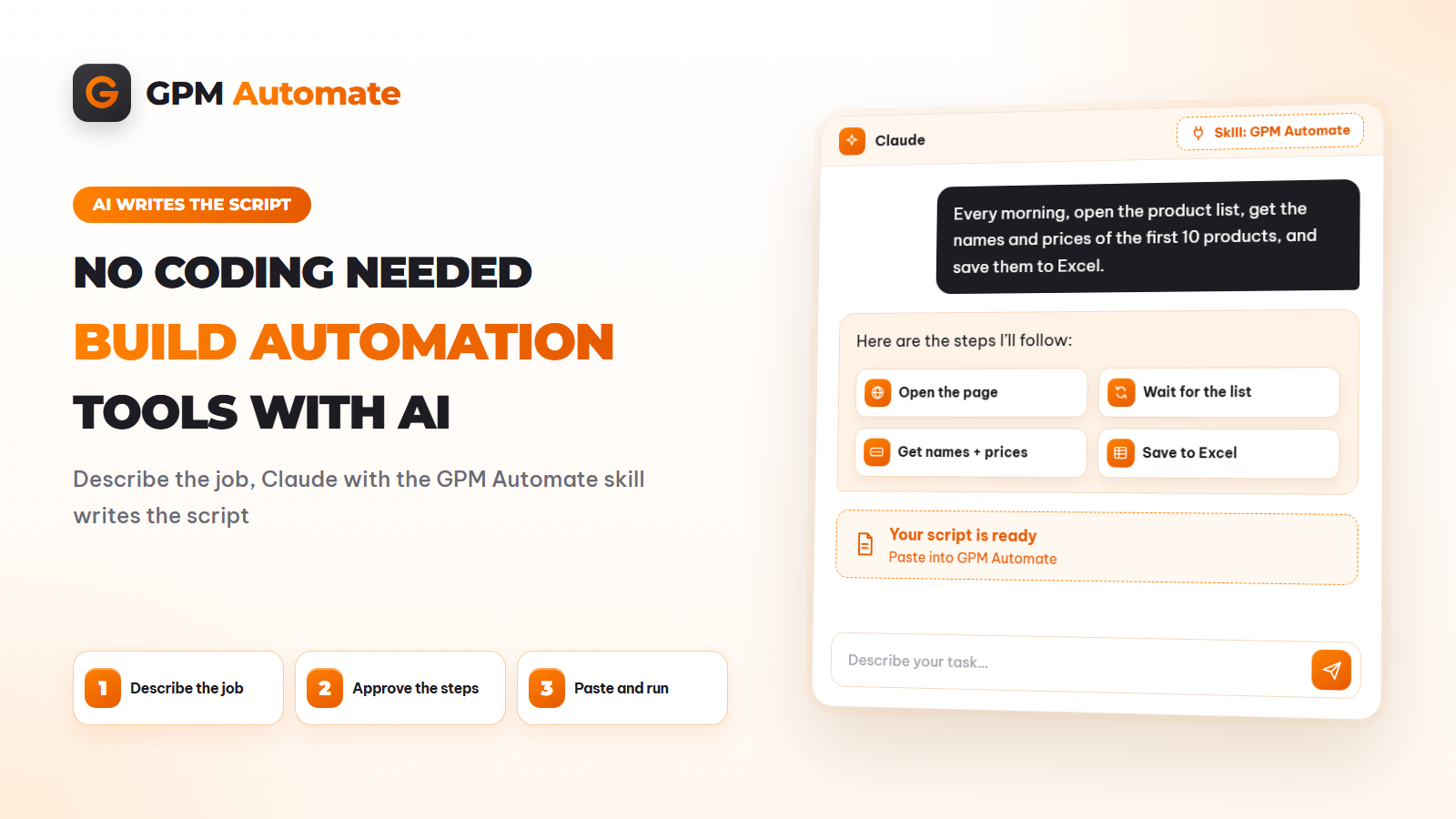
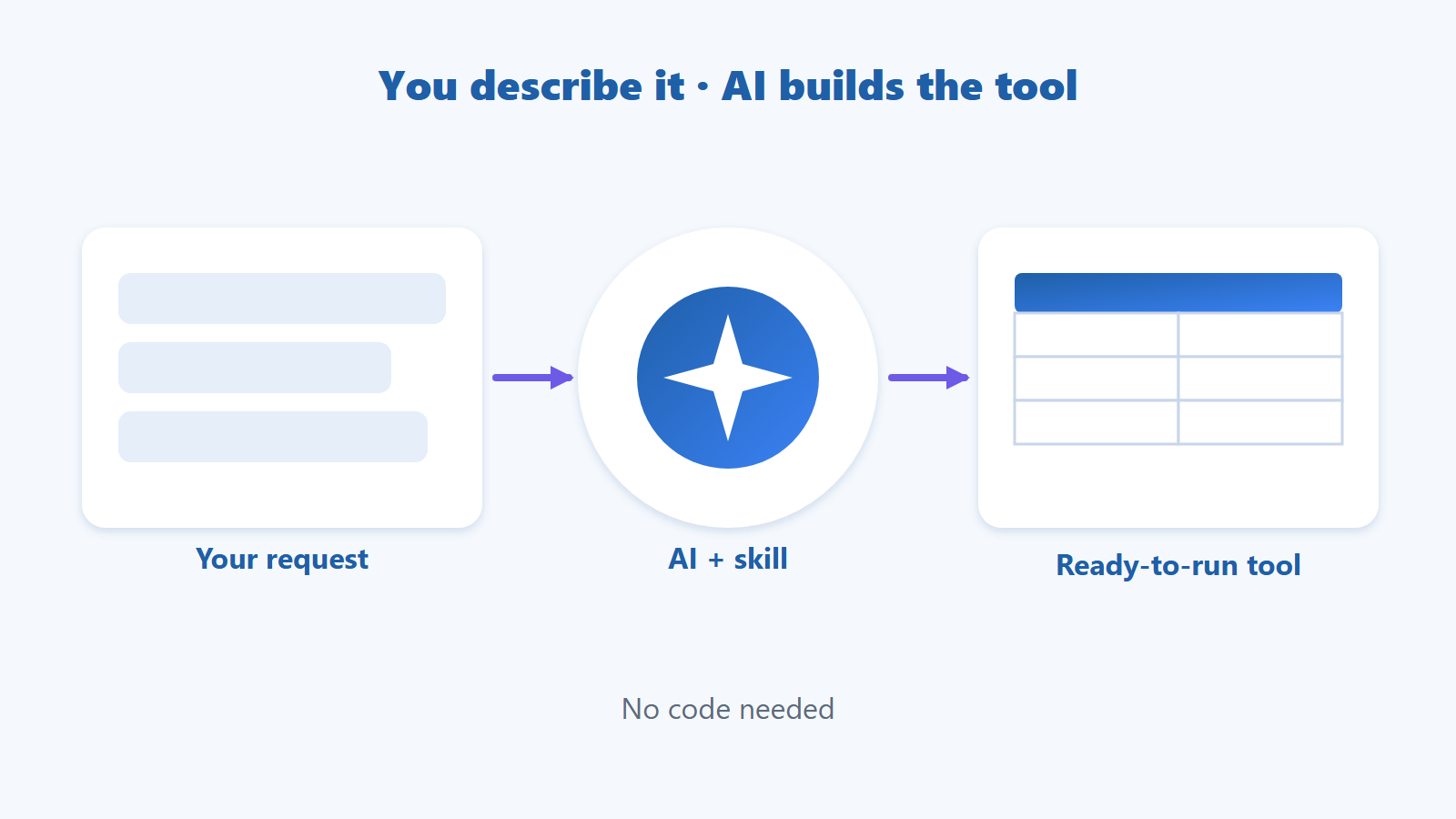
If you do not know how to build the script, ask AI for help. First, install the GPM Automate skill. Think of it as an instruction booklet that teaches AI how to use the software. Then describe the job in everyday language.
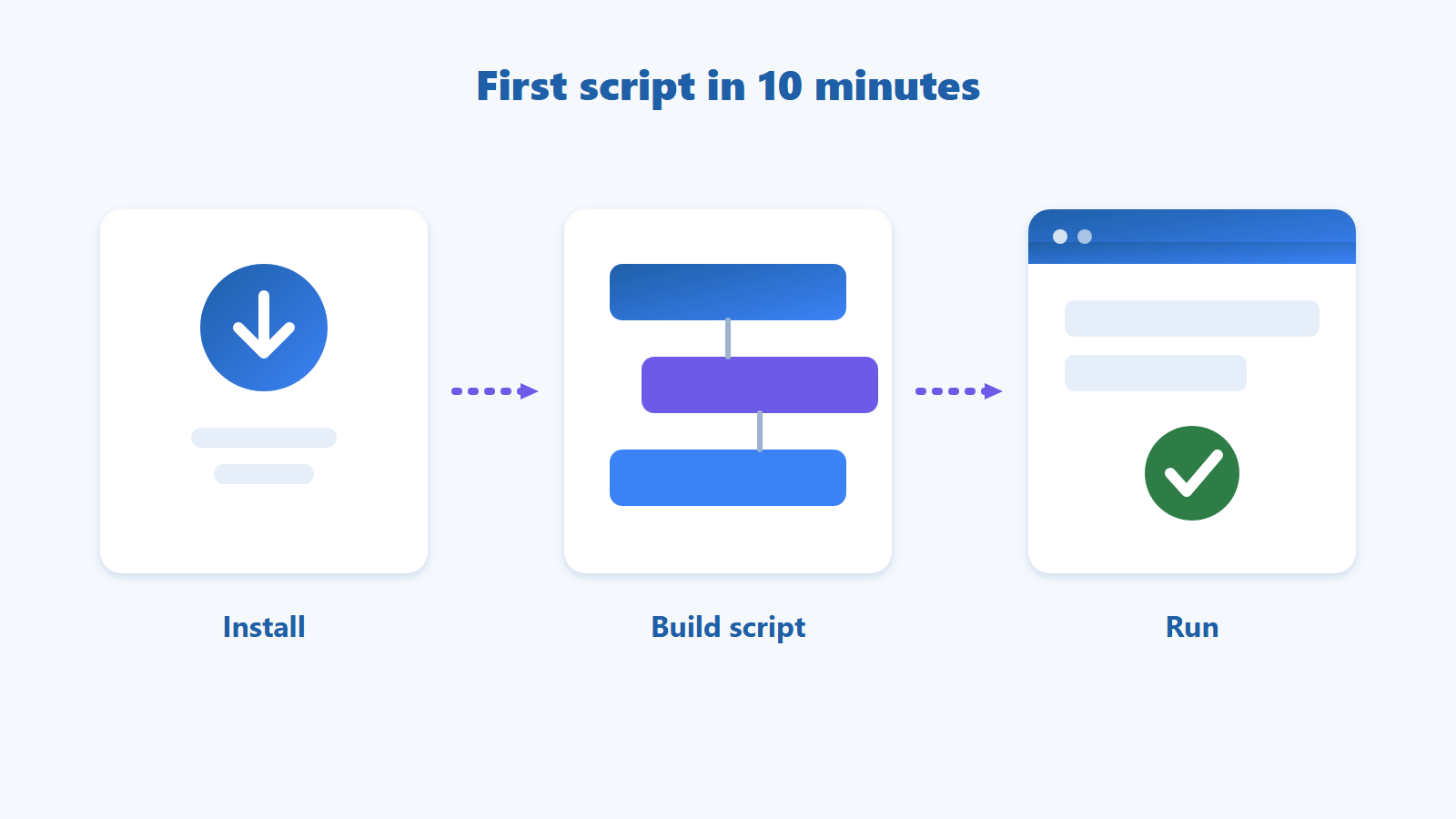
Prepare your list → ask AI to build a script → open it in GPM Automate → test a few rows → check the responses.
Table of contents
Is It Free to Fill Google Forms Automatically?
Creating and running your own scripts in GPM Automate is free. This guide uses AI to help write the script, so you do not need to buy a separate form-filling tool.
You still need GPM Login to open the browser that runs the script. Any costs for GPM Login and your AI tool are separate.
How to Fill Google Forms Automatically With GPM Automate
1. Look at the Form and Prepare a Matching Spreadsheet
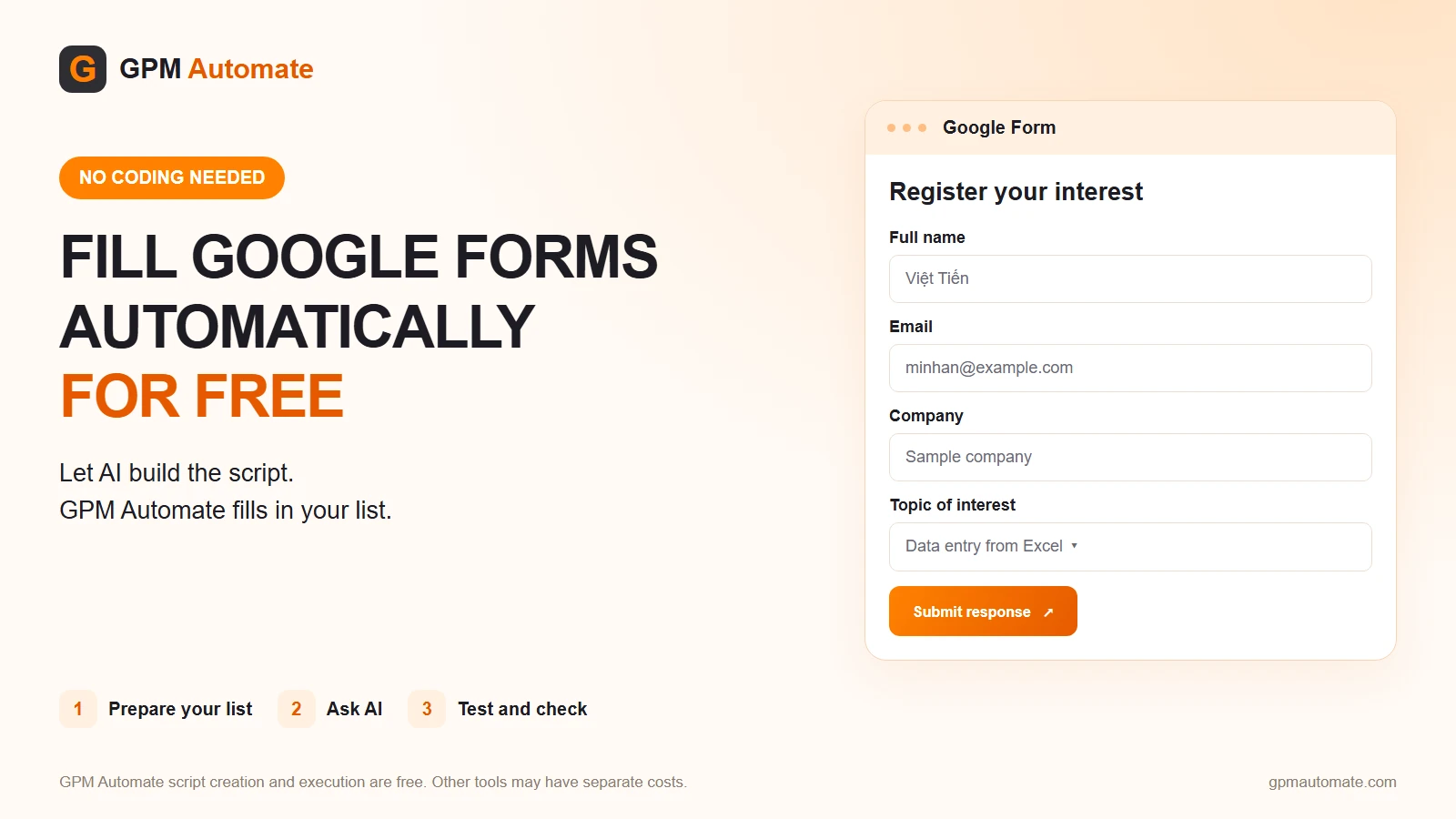
Suppose I need to fill in the Google Form shown below. It asks for a name, email, company and topic of interest.

I would prepare an Excel file with matching columns. Put one person on each row and one piece of information in each column:
Profile name | Full name | Company | Topic of interest | Result | |
|---|---|---|---|---|---|
demo 001 | Viet Tien | An Phat sample company | Data entry from Excel | ||
demo 002 | Hong Linh | Binh Minh sample store | Automatic form filling | ||
demo 003 | Bao Thach | Sample marketing team | Getting started with AI | ||
demo 004 | Tai Duc | Sample marketing team | Getting started with AI |

The sample has a sheet named "Dang ky" with six columns, A–F. Profile name tells the script which GPM Login profile to open; it is not a form field. Use your actual profile names in your file. The names above are placeholders for this article.
Leave Result in column F empty. The script writes "OK" only after the form confirms receipt. Topic names in Excel must match the options on the form.
Only use this with forms you own or have permission to automate.
2. Explain the Task Clearly to AI
First, install the GPM Automate skill for Claude. Then share a screenshot, the form link and a description of your spreadsheet.
A vague request leaves AI guessing:
Build me a form-filling tool.
A detailed request is easier to get right:
Create a GPM Automate script to fill in this Google Form: [paste link].
The file du lieu demo.xlsx has a sheet named "Dang ky" and a header row. Column A contains GPM Login profile names, B full names, C emails, D companies, E topics of interest and F results.
There are four people in rows 2–5. For each row, open the profile named in column A, fill the form using columns B–E and submit. Only write "OK" after the form confirms receipt. Skip rows already marked "OK" in column F. Stop if there is an error.
Summarise the steps for me before building the script.
Read the summary and correct anything that does not match your task, just as you would when briefing a new colleague.
3. Open the Script and Test It
Open the script AI provides in GPM Automate, choose your GPM Login profile and run it. If you are new to the software, see how to open and run your first script.
Start with two or three sample rows. Watch whether it enters the right details, selects the right option and submits. Close the Excel file before running so the software can write results.
4. Check the Responses Before Running the Whole List
Open the responses in Google Forms and compare the names and emails with Excel. Filled-in fields do not mean a response has been submitted.
Once the sample works, run the rest of the list. You can also ask AI to split it across several browser windows. Give each window a separate set of rows so they do not submit the same person.
What If Something Goes Wrong?
Copy the error log from GPM Automate and send it to AI for help. Tell it where the script stopped, for example:
The name and email were entered, but the topic was not selected. Here is the error log. Please fix it.
Add a screenshot if that helps explain the problem.
If the script stopped midway, compare the last few responses before continuing. The form may have received a response before Excel recorded "OK".
Start with one Google Form and three rows of data. Explain the task to AI, check the first few submissions and let GPM Automate handle the repetitive typing.
Frequently Asked Questions
Is filling Google Forms with GPM Automate free?
Creating and running your own scripts in GPM Automate is free. You still need GPM Login; any costs for GPM Login and your AI tool are separate.
Can I do this without coding skills?
AI with the GPM Automate skill can help write the script. Explain your task, review its proposed steps and test a few rows.
Can several browser windows run at once?
Yes, but split the list so each window has its own rows. An OK marker alone does not stop two windows from picking the same row.