How to Install GPM Automate and Build Your First Script in 10 Minutes
Download and install GPM Automate, build a first 4-action script, then run it with the Run button on a GPM Login profile and check the result.
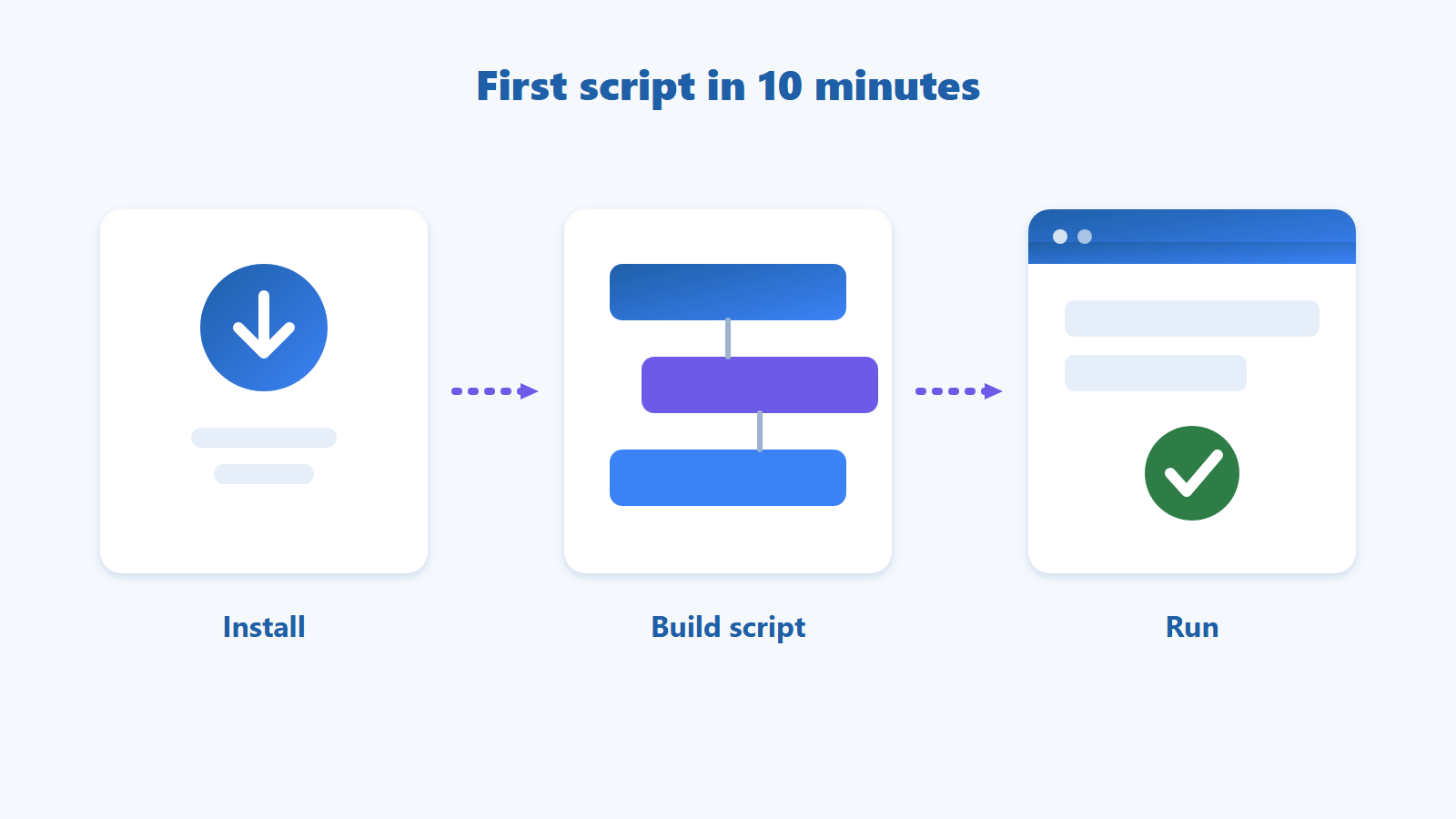
To install GPM Automate, download the .exe installer from gpmautomate.com, click Next until it finishes, keep GPM Login open, then build a first script of a few actions in the editor and run it on a profile.
This guide takes you step by step from a clean machine to a working script. You will download and install GPM Automate, get to know the interface, build a 4-action script that reads the heading of a web page, then run it with the Run button and check the result. If you are new to the idea, read What Is Browser Automation? How It Differs from RPA and Macros first.
Quick summary (TL;DR)
Download the .exe installer from gpmautomate.com, run it and click Next until it completes.
GPM Login must be installed and open, because scripts control GPM Login profiles directly.
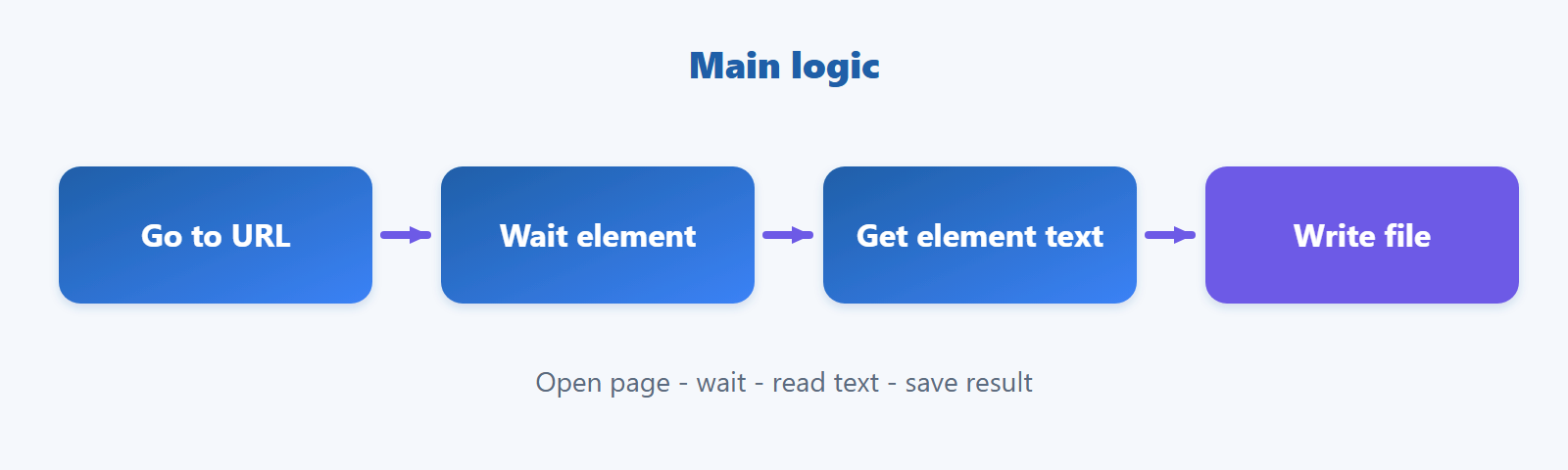
The first script needs only 4 actions: Go to URL, Wait element, Get element text, File write all text.
Click Run on the toolbar to run the script; for complex scripts use the Test button (covered in another article).
At the Profile step, select a profile and click Start; check the Completed status and the Log button for the result.
Table of contents
What Do You Need Before Installing GPM Automate?
You need a Windows machine with GPM Login installed and at least one profile, because GPM Automate scripts control the profiles of that browser directly.
GPM Login installed and open while the script runs. If you do not have it yet, get it from the GPM Login website.
One profile for testing. You can create an empty profile in GPM Login.
An internet connection to download the installer and open the web page used in the example.
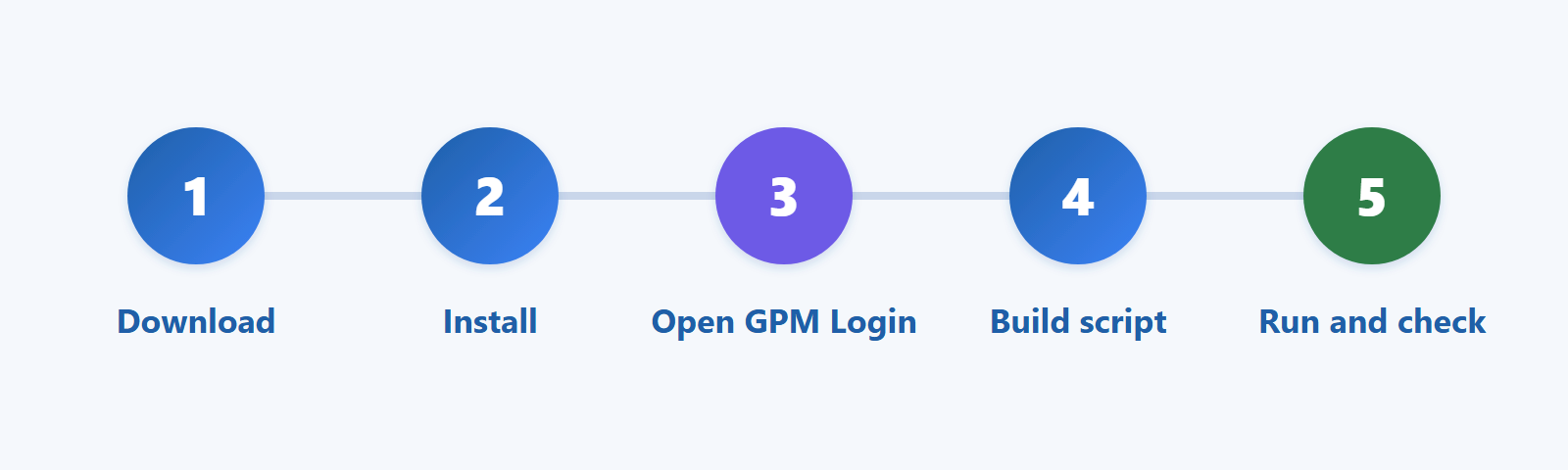
The whole process has 5 steps, shown below. Most of the time goes into building the script.
How to Download and Install GPM Automate
Go to gpmautomate.com, download the software, run the .exe installer and click Next through the steps until the installation finishes.
Step 1 — Download: open gpmautomate.com and download the installer.
Step 2 — Run the installer: open the downloaded .exe file.
Step 3 — Finish: click Next through each step until the installation completes.
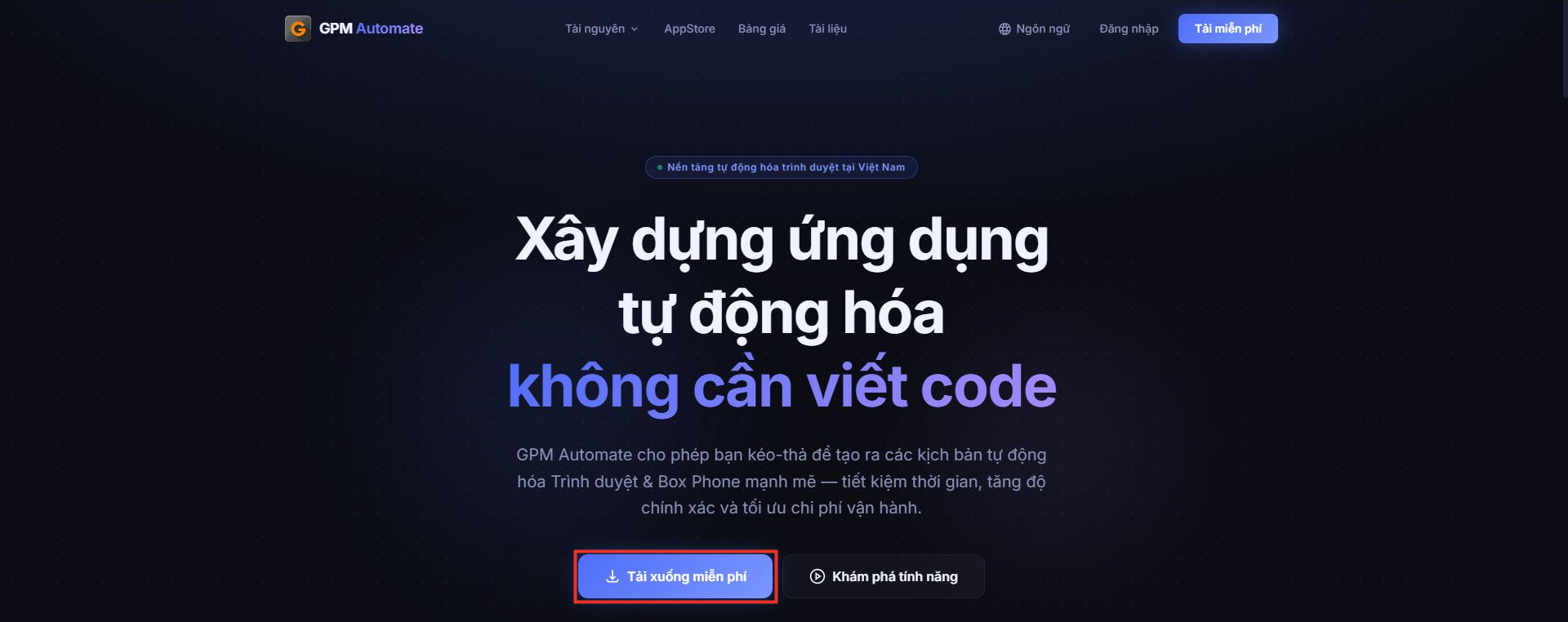
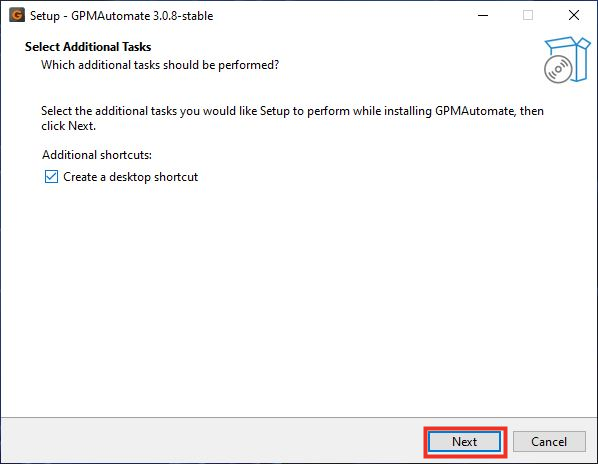
For a visual walkthrough, the download and install page of the GPM Automate docs includes a video.
What Does the GPM Automate Interface Include?
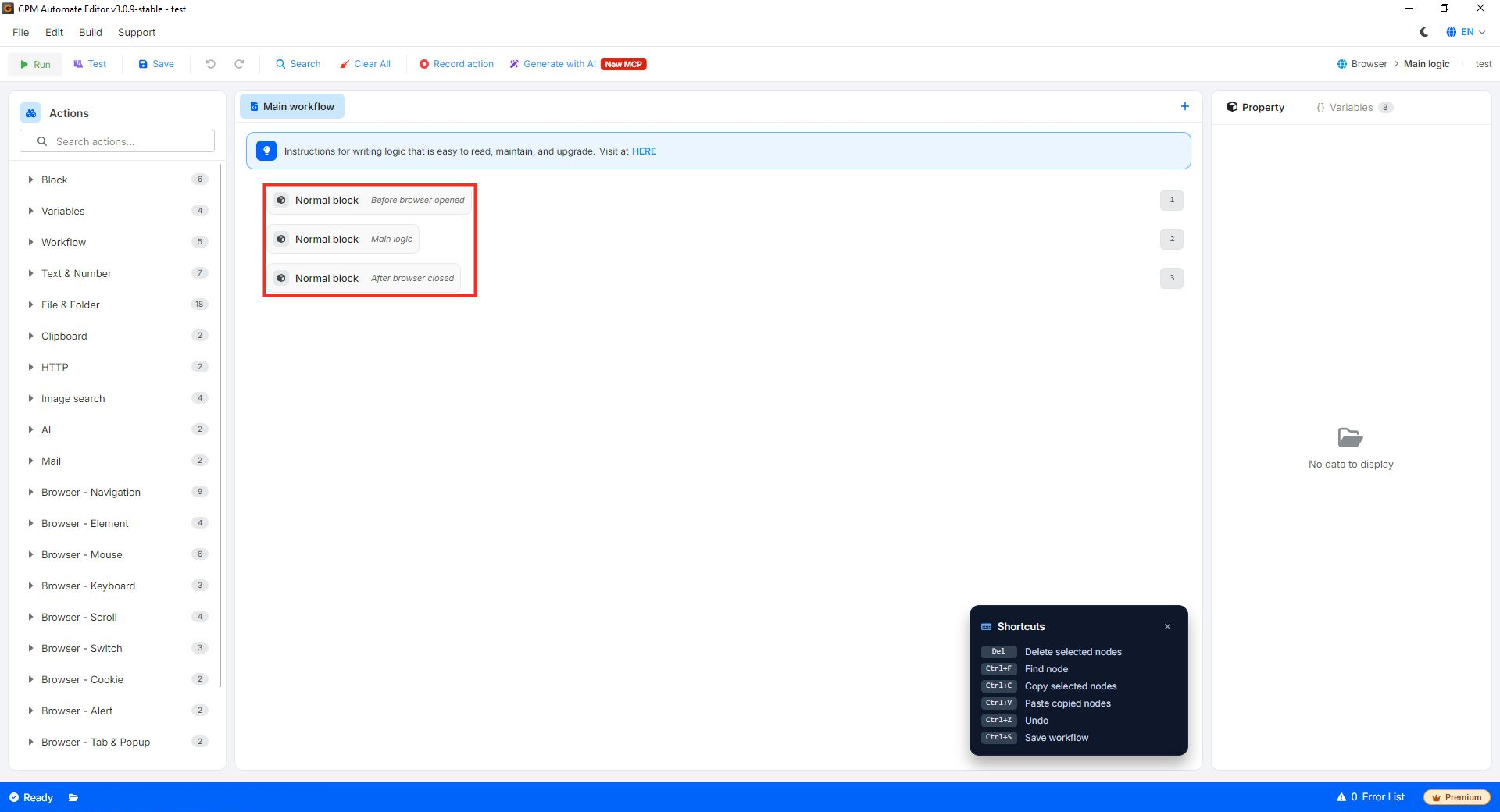
GPM Automate has an Editor for building scripts and a Runtime for running ready-made script files; inside the Editor, a script is split into three blocks that run in order.
Component | What it is for | Who uses it |
|---|---|---|
Editor | Build scripts by adding and arranging actions | People who write their own scripts |
Runtime | Open and run ready-made .gpmlaunch script files without editing them | People who only need to run scripts |
In the Editor, every script has three Normal blocks: Before browser opened, Main logic and After browser closed. The example in this guide uses only Main logic. On the left is the Actions panel with searchable action groups, and on the right the Property panel for filling in settings. The toolbar above has Run, Test, Save, Record action and Generate with AI; the AI part comes in later articles.
How to Build Your First GPM Automate Script
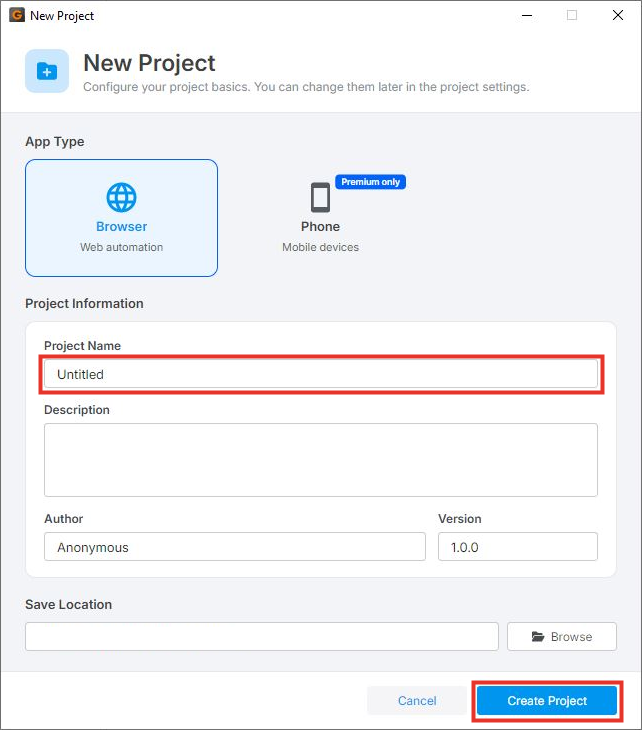
Create a new project with New Project, then add 4 actions to Main logic: Go to URL, Wait element, Get element text and File write all text, to open a page, read its heading and save it to a file.
This example opens example.com, reads the main heading and writes it to a text file. The page is simple and stable, so the result is easy to verify.
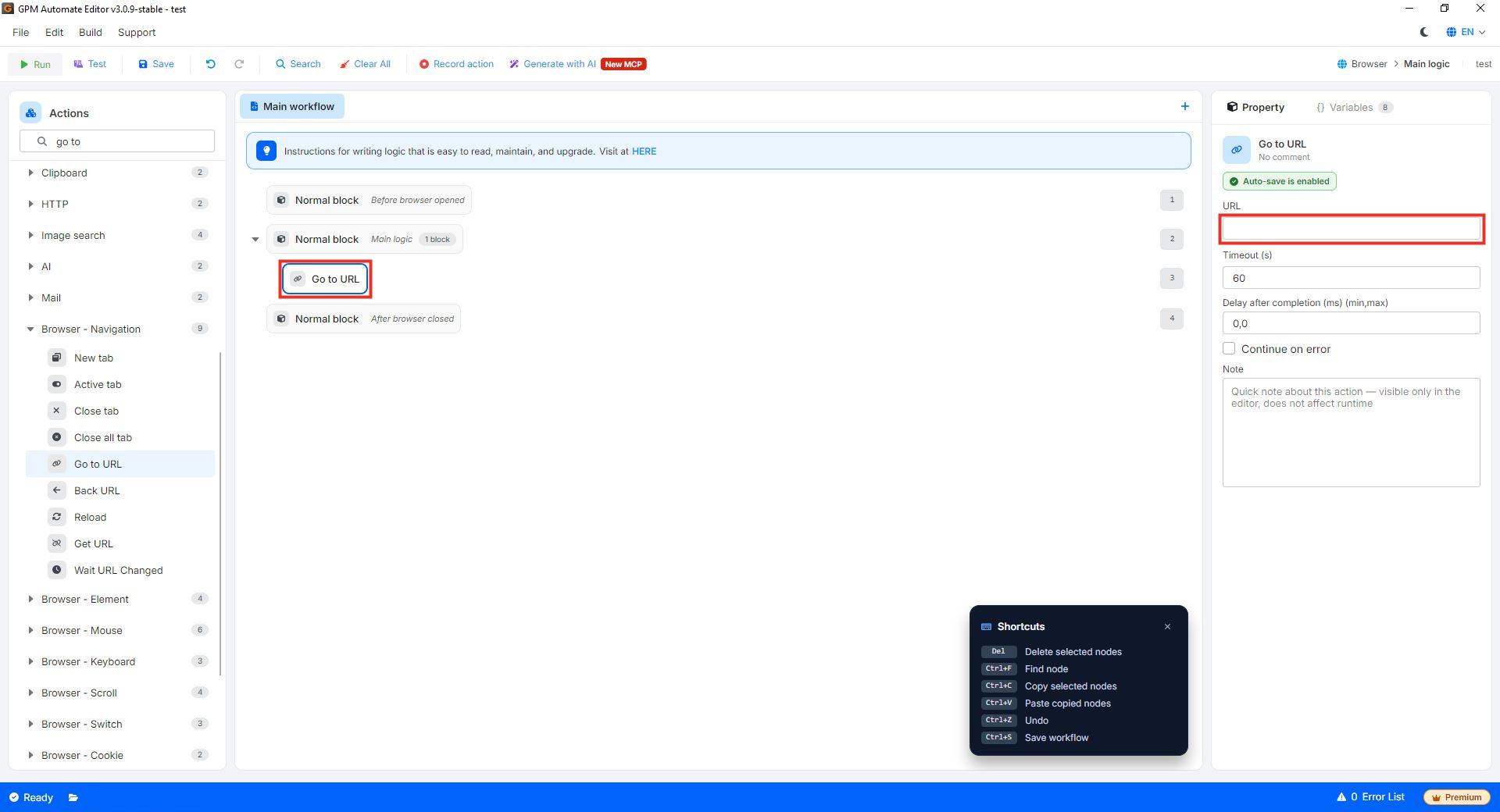
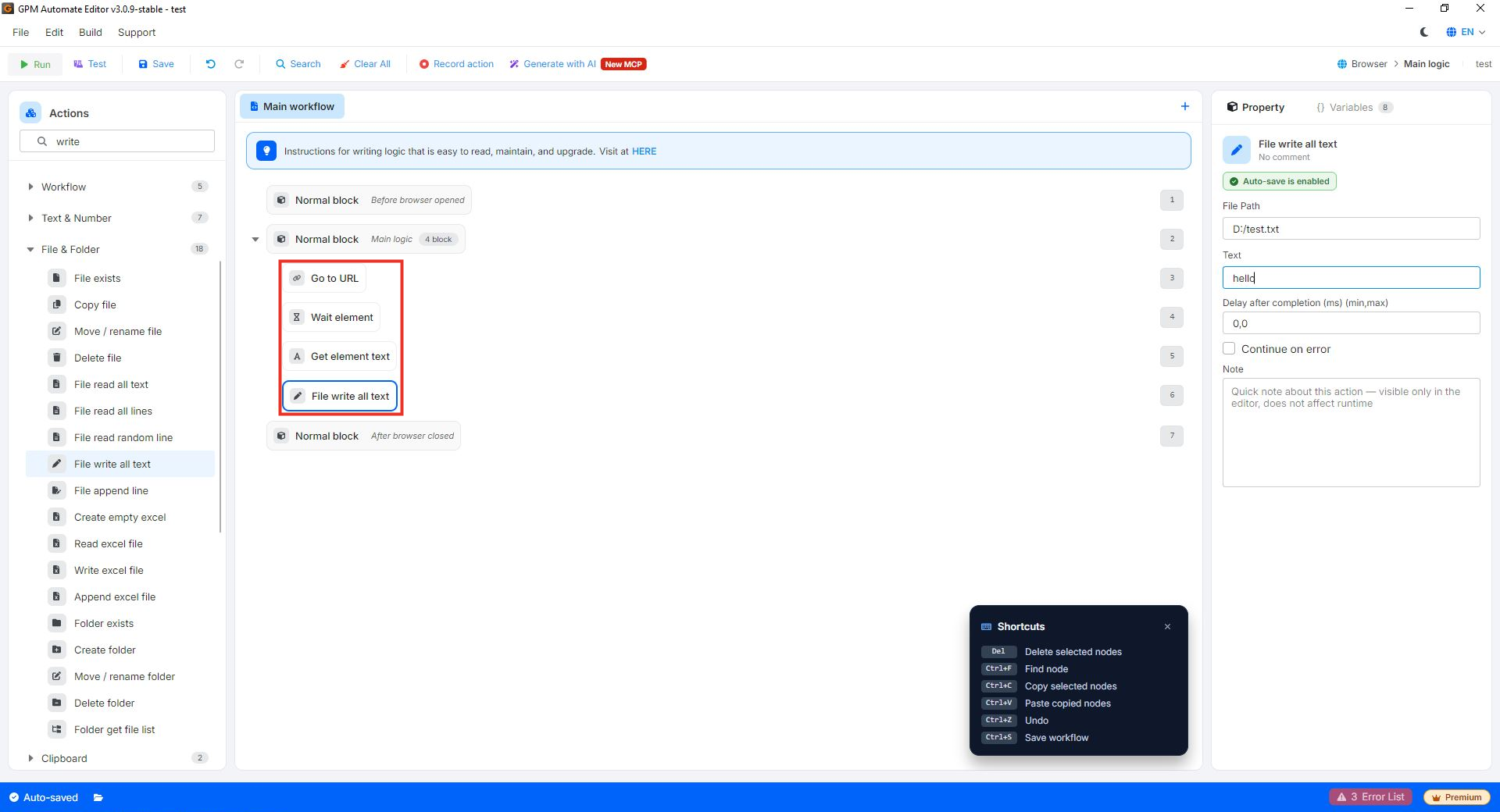
Go to URL (group Browser - Navigation): enter
https://example.comin the URL field to open the page.Wait element: wait for the heading to appear, using the XPath
//h1.Get element text: read the text of
//h1and store it in a variable such as$title.File write all text: write the value of
$titleto a file such asD:\test.txt(the File Path and Text fields in the Property panel).
Order matters: the page must be open and the element present before its text can be read. The Editor has Auto-save, but you can still click Save or press Ctrl + S to be sure.
How to Run the Script with the Run Button
Save the script, click Run on the Editor toolbar, choose a GPM Login profile at the Profile step and click Start.
For a simple script like this example, just click Run and it starts right away, with no extra setup. For complex multi-step scripts, use the Test button to try actions one at a time; that is covered in another article.
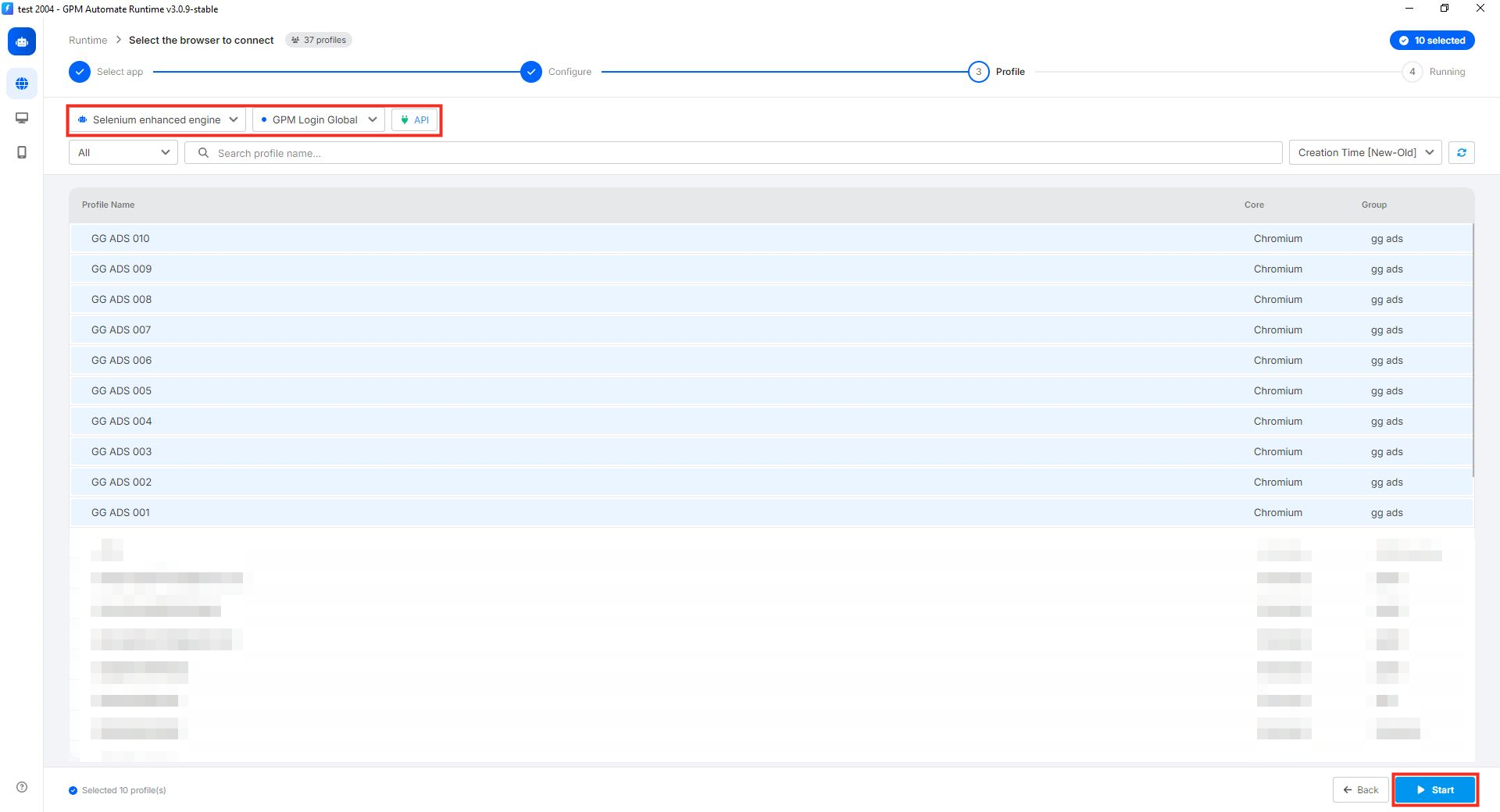
Click Run on the Editor toolbar. The run screen has 4 steps: Select app → Configure → Profile → Running.
At the Profile step, use the bar above the list to choose the control engine (for example Selenium enhanced engine) and the browser application (for example GPM Login Global).
If needed, click the API button to set the port and connection path to GPM Login.
Select the profile to run (you can select several), then click Start at the bottom right.
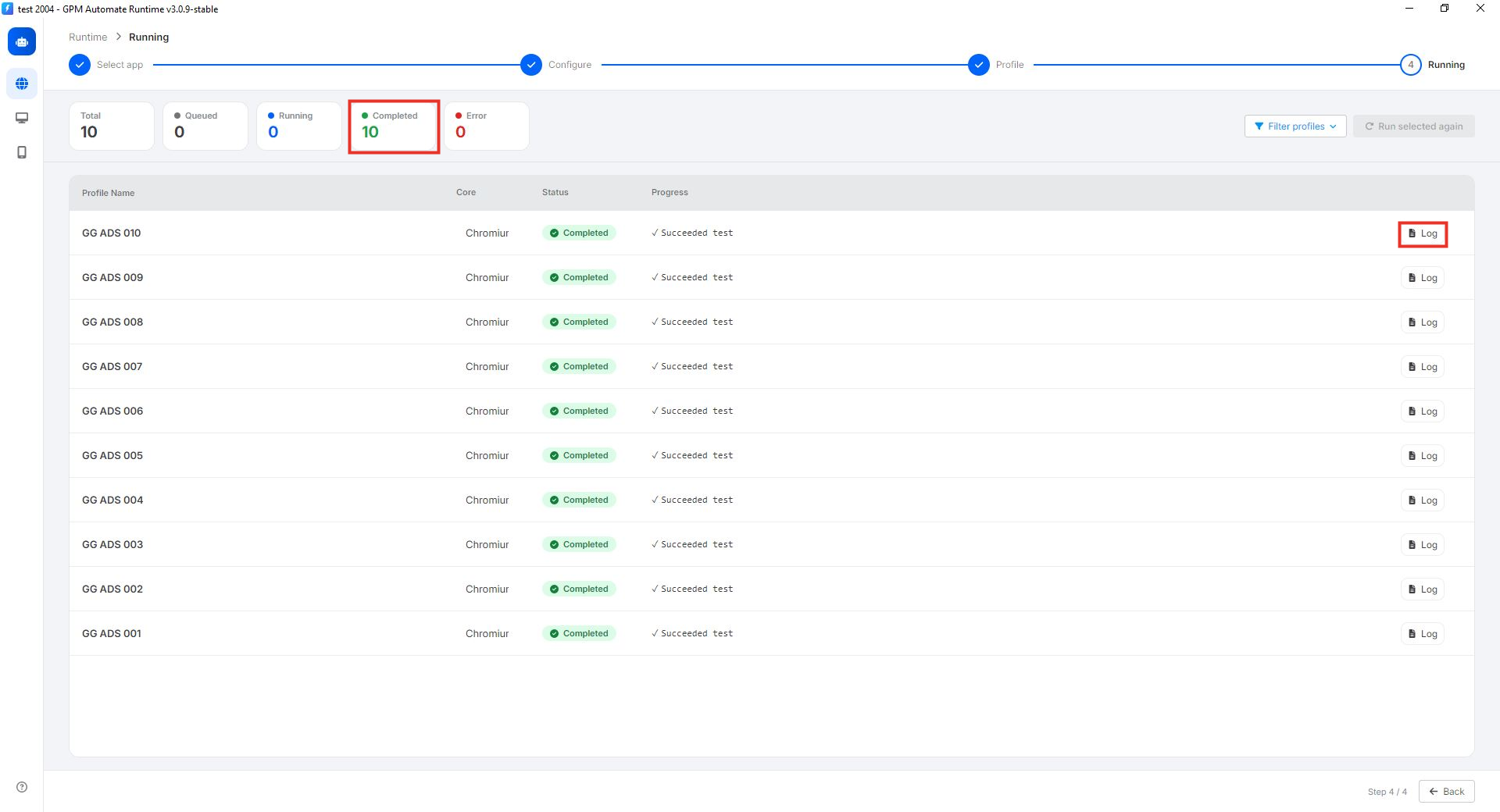
More options are described in the profile selection guide. The script worked if the browser opened example.com, the status shows Completed and the result file contains the text Example Domain.
Frequently asked questions
Do I need GPM Login to use GPM Automate?
Yes. GPM Automate scripts control GPM Login profiles directly, so GPM Login must be installed and open when the script runs.
Do I need to know how to code to use GPM Automate?
No. You build scripts by adding and arranging ready-made actions such as opening a page, waiting for an element, reading text and writing a file.
Is building scripts for my own use paid?
Based on current information, you can build and use your own scripts without buying anything; paid plans relate to packaging .gpmlaunch files to sell or share without exposing the code. Check the latest policy on the home page.
Where do I look when a script fails?
Open the profile's Log button at the Running step to see the details. Common causes are GPM Login not being open, the wrong browser application selected, or an XPath that finds no element.
How do I run a ready-made .gpmlaunch file?
Double-click the .gpmlaunch file and GPM Automate Runtime opens and runs it. Alternatively, open Runtime, click + Add Application, choose Executable file .gpmlaunch and select the file.
Conclusion
With one installer, one GPM Login profile and four actions, you have a working first script. Try changing the website and the element you read to get comfortable with the actions, then continue with the next articles in this series, including how to have AI write scripts for you.
Install GPM Automate and run your first script
Download GPM Automate and follow the steps in this guide to have a working script in about 10 minutes.
About the author
Canh Duc — content lead for GPM Automate, GPM Softwares. Experience building and running browser automation scripts for everyday workflows.
Reviewed by the GPM Softwares content team.
Published: 2026-10-26 · Updated: 2026-10-26