GPM Automate: No-Code Browser Automation Platform
As businesses and individuals handle more tasks through web browsers, repetitive operations can quickly become a major productivity problem.
Opening websites, logging in, clicking buttons, entering data, checking statuses, downloading files, and processing large lists can consume significant amounts of time when performed manually.
Browser automation can solve many of these problems.
However, traditional automation tools often require programming knowledge. Users may need to write scripts, handle selectors, build logic, and troubleshoot errors themselves.
GPM Automate takes a different approach.
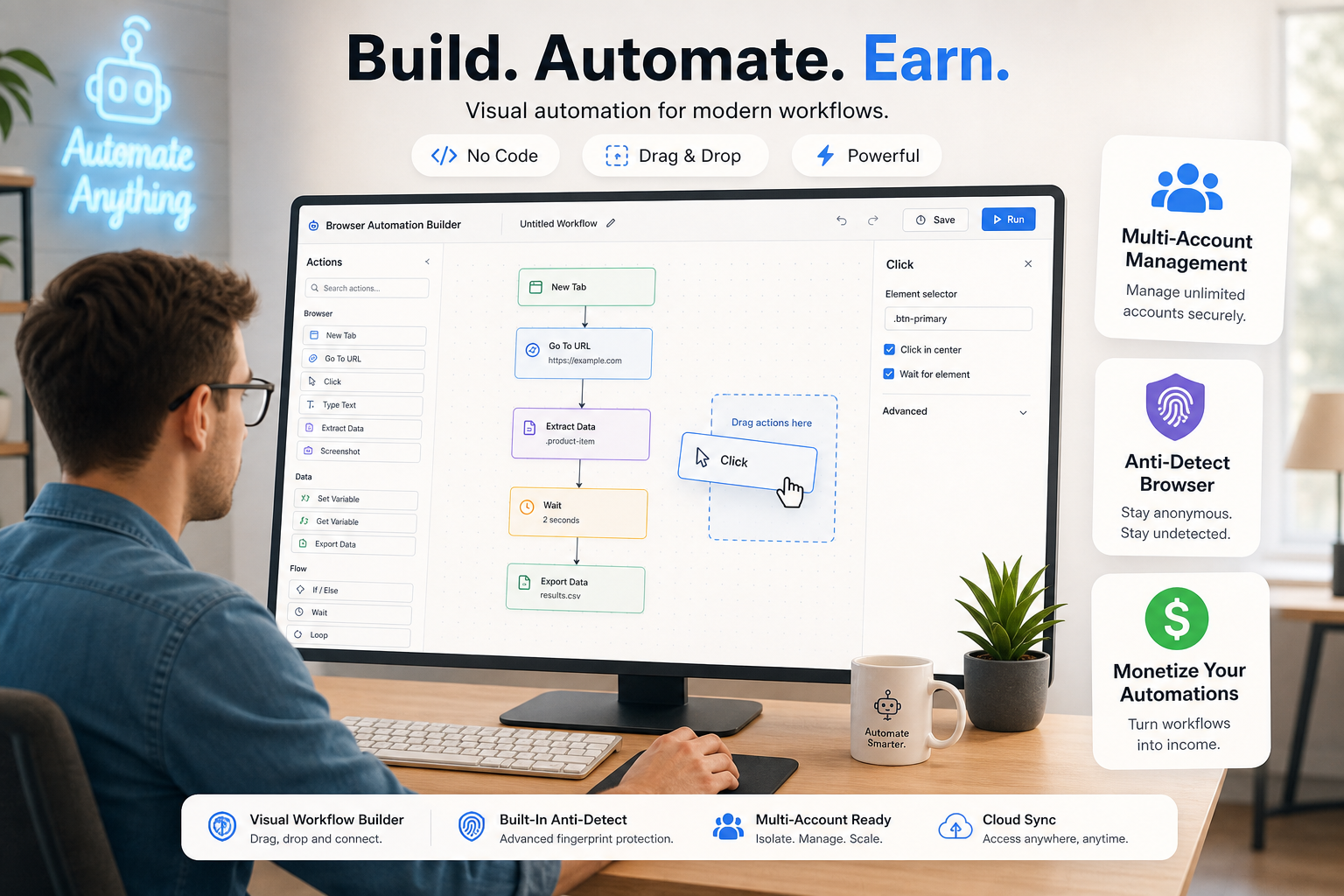
It provides a visual browser automation environment where users can build workflows with action blocks instead of writing code for every task.
GPM Automate supports multiple action categories, including Navigation, Element, Mouse, Keyboard, HTTP, File & Folder, Cookie, AI, and JavaScript. (docs.gpmautomate.com)
What Is GPM Automate?
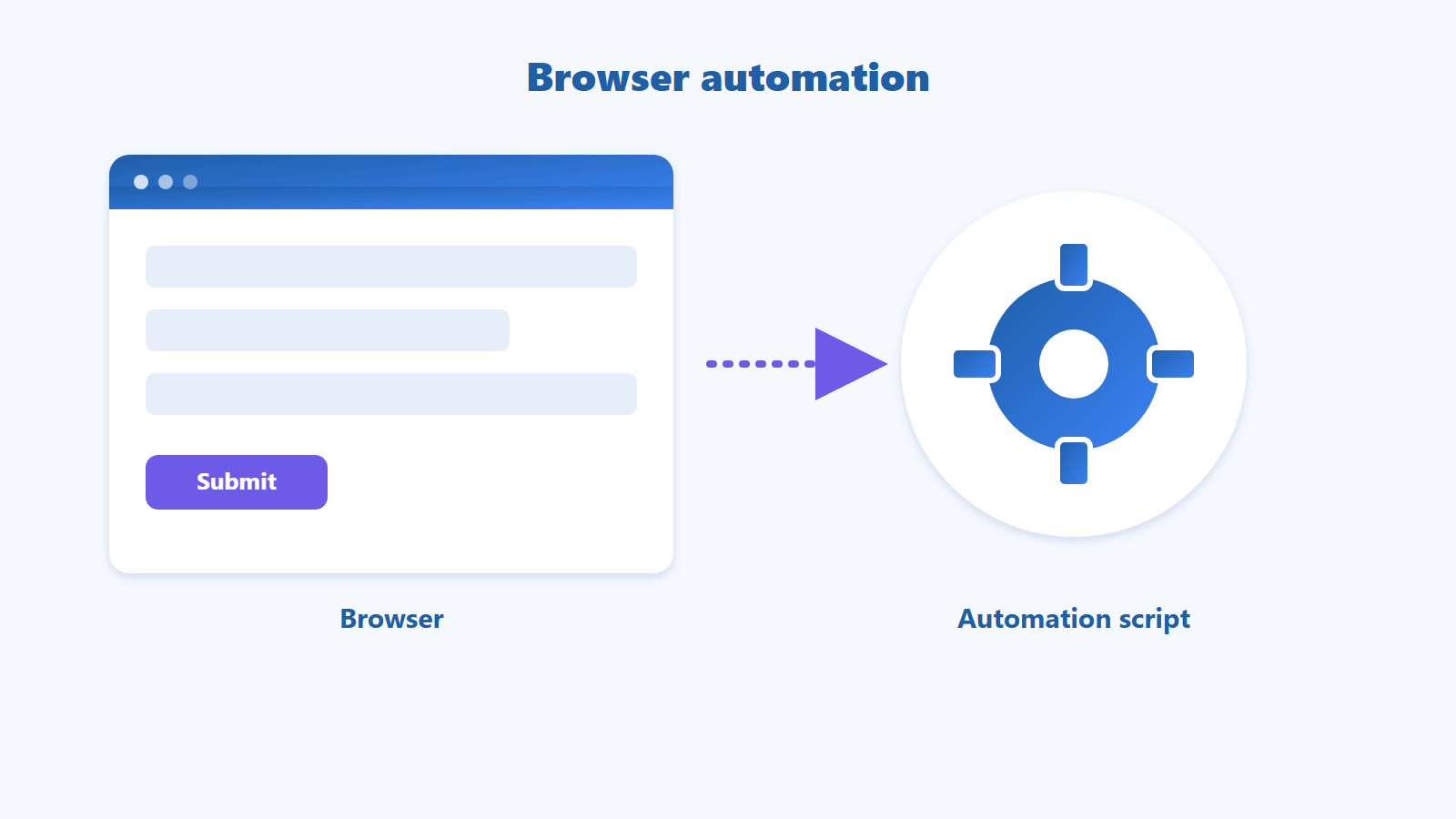
GPM Automate is a no-code browser automation platform designed to turn repetitive browser operations into automated workflows.
Instead of manually performing:
Open Browser → Visit Website → Click → Enter Data → Check Result → Repeat
you can build the corresponding process as a visual workflow.
A basic workflow may look like:
Start → Open Website → Find Element → Click → Input → Wait → Check Result → End
Each block represents an action and can be connected to create a complete automation process.
This approach makes browser automation more accessible to users without programming experience.
Why Use Browser Automation?
Not every task needs automation.
However, a repetitive process is often a good candidate when it has three characteristics:
It happens frequently.
The workflow follows a predictable structure.
The task can be completed through a web browser.
For example, imagine an employee needs to open 500 URLs and check the status of each page.
Manually, the process could be:
Open → Check → Record Result → Move to Next URL
hundreds of times.
With automation, it can become:
Read List → Open URL → Check → Save Result → Move to Next URL
GPM Automate can turn workflows like this into reusable automation processes.
How Does GPM Automate Work?
The automation-building process can generally be divided into four steps.
Step 1: Define the Workflow
First, describe the task you want to automate.
For example:
Read Excel Data → Open Website → Find Product → Extract Information → Save Result
Step 2: Break the Process Into Actions
Turn each operation into an action block.
For example:
Read Excel.
Open URL.
Find Element.
Click.
Get Text.
Set Variable.
Write File.
Step 3: Connect the Blocks
Arrange the actions in the order in which they should run.
For example:
Read Excel
↓
For
↓
Open URL
↓
Find Element
↓
Get Text
↓
Save Result
Step 4: Run and Test
Once the workflow is complete, run it to identify steps that may not work as expected.
You can then modify the workflow before deploying it for regular use.
Is GPM Automate Really No-Code?
For many basic workflows, you do not need to write code.
GPM Automate provides pre-built actions for common browser operations.
However, the platform is not limited to no-code functionality.
For more advanced workflows, GPM Automate supports Execute JavaScript.
This action allows JavaScript to run directly in the browser and can work with variables from the workflow. (docs.gpmautomate.com)
This creates two levels of automation:
No-code → suitable for beginners.
No-code + JavaScript → suitable for more advanced workflows.
How Does GPM Automate Handle Data?
Real-world automation often involves more than browser interactions.
Workflows may also need to read and process data.
GPM Automate provides functionality for working with files, folders, variables and arrays.
For example, the Folder Get File List action can retrieve files from a folder and return an array containing their paths. (docs.gpmautomate.com)
You can then combine this with the Count action to determine the number of items in the array. (docs.gpmautomate.com)
A loop can then process each file individually.
A workflow could look like:
Folder → Get File List → Count → For → Process File
Automating Excel Data
One common use case for browser automation is processing large datasets.
For example, an Excel file may contain:
Website | Product | Keyword |
Site A | Product 1 | Keyword A |
Site B | Product 2 | Keyword B |
Site C | Product 3 | Keyword C |
Instead of copying and processing every row manually, the workflow can read the data and process each row automatically.
GPM Automate supports combining input data with For loops.
The GPM Automate documentation also provides examples of using For to process data from Excel row by row. (docs.gpmautomate.com)
GPM Automate and Loops
Loops are one of the most important components of browser automation.
Suppose you have 1,000 URLs.
You do not need to create 1,000 separate workflows.
Instead, you can create:
Read URL List
↓
For
↓
Open URL
↓
Process
↓
Save Result
↓
Next URL
GPM Automate provides loop-related actions such as For and Next Loop. (docs.gpmautomate.com)
When a workflow needs to stop a loop based on a specific condition, you can also use Exit Loop. (docs.gpmautomate.com)
GPM Automate for Web3
Web3 is one area where many workflows rely heavily on browser-based operations.
Users may frequently need to:
Monitor multiple websites.
Check campaign status.
Perform repetitive browser actions.
Monitor data.
Check dashboards.
Manage multiple workflows.
Collect information from different sources.
GPM Automate can be used to automate suitable browser operations within these workflows.
For example:
Open Dashboard → Check Status → Extract Data → Save Result
Or:
Read URL List → Visit Each Website → Extract Information → Save Data
The key is to use automation for legitimate operations while following the terms and conditions of each platform.
GPM Automate for MMO
MMO workflows often involve repetitive browser tasks.
Examples include:
Website checking.
Data collection.
URL processing.
Information management.
File uploads.
File downloads.
Status checking.
Repetitive browser workflows.
Instead of building a separate script for every task, users can create workflows using reusable action blocks.
This makes it easier to automate relatively straightforward processes without building everything from scratch.
GPM Automate for Marketing
Marketing teams also handle many repetitive browser-based tasks.
For example:
Data Collection
Collect information from multiple websites using a consistent structure.
Website Monitoring
Check a list of websites and record their status.
Content Operations
Automate repetitive steps in publishing or content management workflows.
Campaign Operations
Track and process repetitive marketing operations.
Reporting
Collect information from multiple sources and consolidate the results into files.
These workflows can reduce the amount of manual work required by marketing teams.
GPM Automate for eCommerce
eCommerce operations also include many tasks that can benefit from browser automation.
Examples include:
Product price monitoring.
Product data collection.
Inventory checks.
Website monitoring.
Product data processing.
Data uploads.
Listing verification.
A workflow could look like:
Product List → Open Product → Extract Data → Save Data → Next Product
As the number of products grows, automation can reduce the amount of repetitive manual work.
GPM Automate and GPMLogin
GPM Automate and GPMLogin solve different problems.
GPMLogin focuses on browser profiles.
GPM Automate focuses on workflow automation.
The two products can work together when a workflow requires both browser environment management and automated browser actions.
For example:
Browser Profile
↓
GPM Automate
↓
Website
↓
Automation Workflow
This separation allows the browser environment and automation logic to be managed independently.
Can GPM Automate Handle Popups and Multiple Windows?
Modern websites frequently use popups or open additional tabs during certain operations.
GPM Automate provides a Switch to Popup action that allows the workflow to switch to a popup opened from the current page and continue interacting with it. (docs.gpmautomate.com)
For example:
Click Login with Google
↓
Popup Opens
↓
Switch to Popup
↓
Perform Action
↓
Active Tab
↓
Return to Main Window
Actions like this make it easier to automate real-world browser workflows.
Who Is GPM Automate For?
GPM Automate is suitable for anyone who regularly performs repetitive tasks in a browser.
Web3 Users
Automate repetitive browser operations and research workflows.
MMO Users
Process repetitive tasks and large datasets.
Marketers
Automate marketing operations and browser-based workflows.
Sellers and eCommerce Teams
Process product data and operational tasks.
Freelancers
Build browser automation workflows for clients.
Businesses
Standardize and automate internal processes.
When Should You Not Use GPM Automate?
Automation is not the solution to every problem.
You should avoid automating workflows that:
Change too unpredictably.
Depend heavily on human judgment.
Require important financial confirmation.
Could violate platform terms.
Attempt to bypass CAPTCHA or security systems.
Attempt to bypass anti-bot or anti-Sybil mechanisms.
Good automation is not about automating as much as possible.
It is about building workflows that are stable, controllable, and genuinely useful.
How to Get Started With GPM Automate
If you are new to browser automation, do not start with a complex workflow.
Choose a simple task first.
For example:
Open Website → Click Button → Extract Text → Save Result
Once the workflow works reliably, you can gradually add:
Variables.
Loops.
Conditions.
Files.
HTTP requests.
JavaScript.
Error handling.
GPM Automate provides documentation covering variables, workflows, files, HTTP, elements, mouse, keyboard, JavaScript and other action categories. (docs.gpmautomate.com)
This learning approach allows you to understand each component before building larger automation systems.
Conclusion
GPM Automate is more than a tool for a specific use case.
It is a no-code browser automation platform designed to turn repetitive browser operations into reusable workflows.
From Web3 and MMO to marketing and eCommerce, many workflows share the same fundamental problem:
People spend too much time performing tasks that software can handle.
GPM Automate addresses this by combining:
No-Code + Browser Automation + Workflow + Data + Integration
Beginners can start with simple drag-and-drop blocks.
More advanced users can combine variables, loops, and JavaScript to build more sophisticated workflows.
Instead of thinking:
“I need programming skills before I can automate.”
Start with a different question:
“What task am I repeating every day?”
If that task follows a predictable process, GPM Automate can be a practical starting point for automating it.