What Is Browser Automation? How It Differs from RPA and Macros
What browser automation is, how it works, how it differs from RPA and macros, and how to start without writing code.
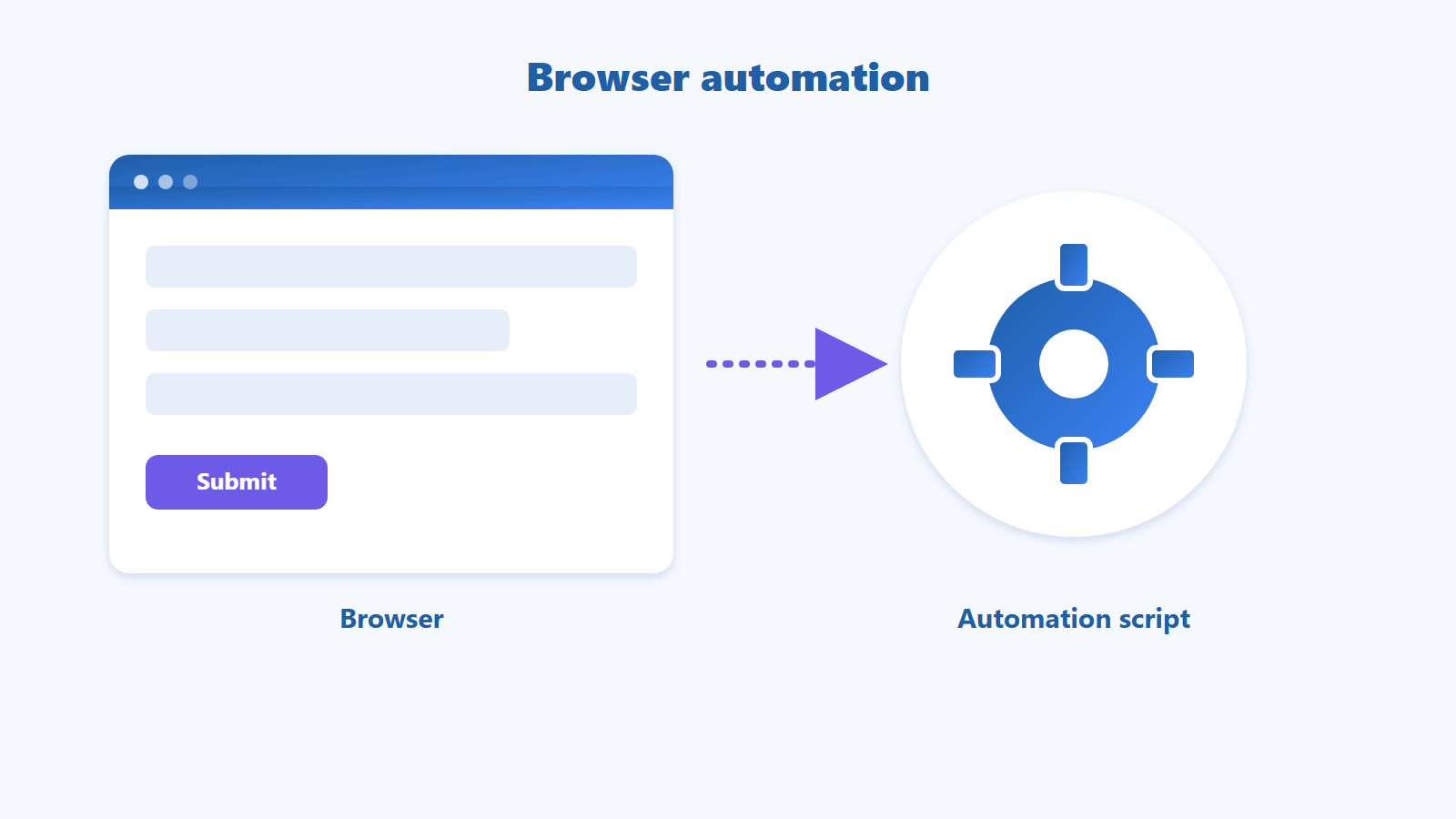
Browser automation is using a script to perform actions in a web browser for you, such as opening pages, clicking buttons, filling in forms and collecting data, instead of repeating them by hand.
If you open the same site every day, fill in the same form and copy data back and forth dozens of times, you are doing exactly the kind of work browser automation was built for. This guide explains the idea in plain language, compares it with RPA and macros, and shows how to start without writing code.
Quick summary (TL;DR)
Browser automation = a script does your browser tasks for you.
The script finds page elements (buttons, inputs), then clicks, types, waits and reads data.
It differs from macros (record screen coordinates) and RPA (broader, includes desktop apps).
Good fits: form filling, data collection, testing, recurring reports.
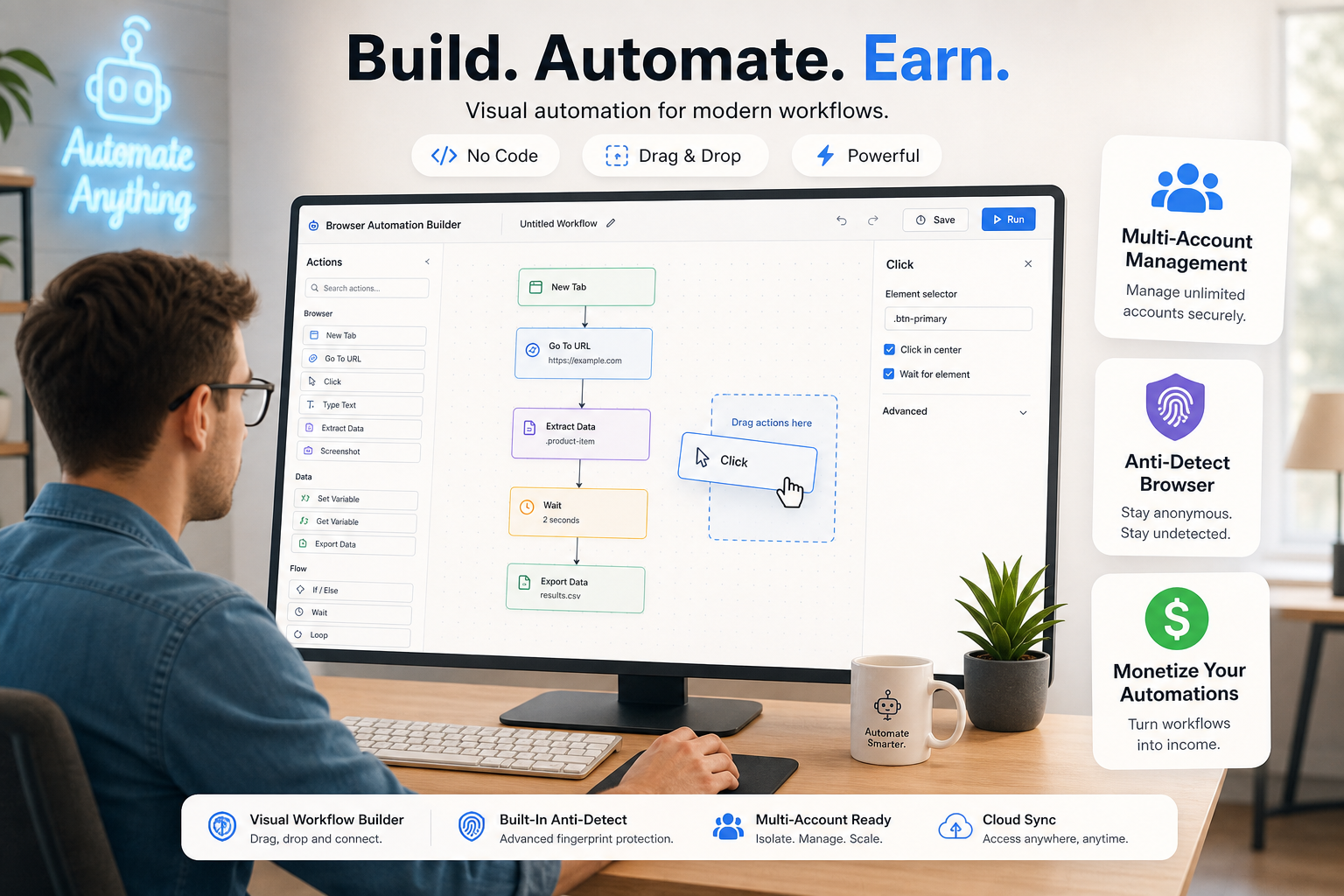
No coding needed: no-code tools such as GPM Automate let you build each step visually.
Table of contents
What Is Browser Automation?
Browser automation is a technique where software controls a web browser like a real user: it opens pages, clicks buttons, types text, moves between pages and collects information following predefined steps.
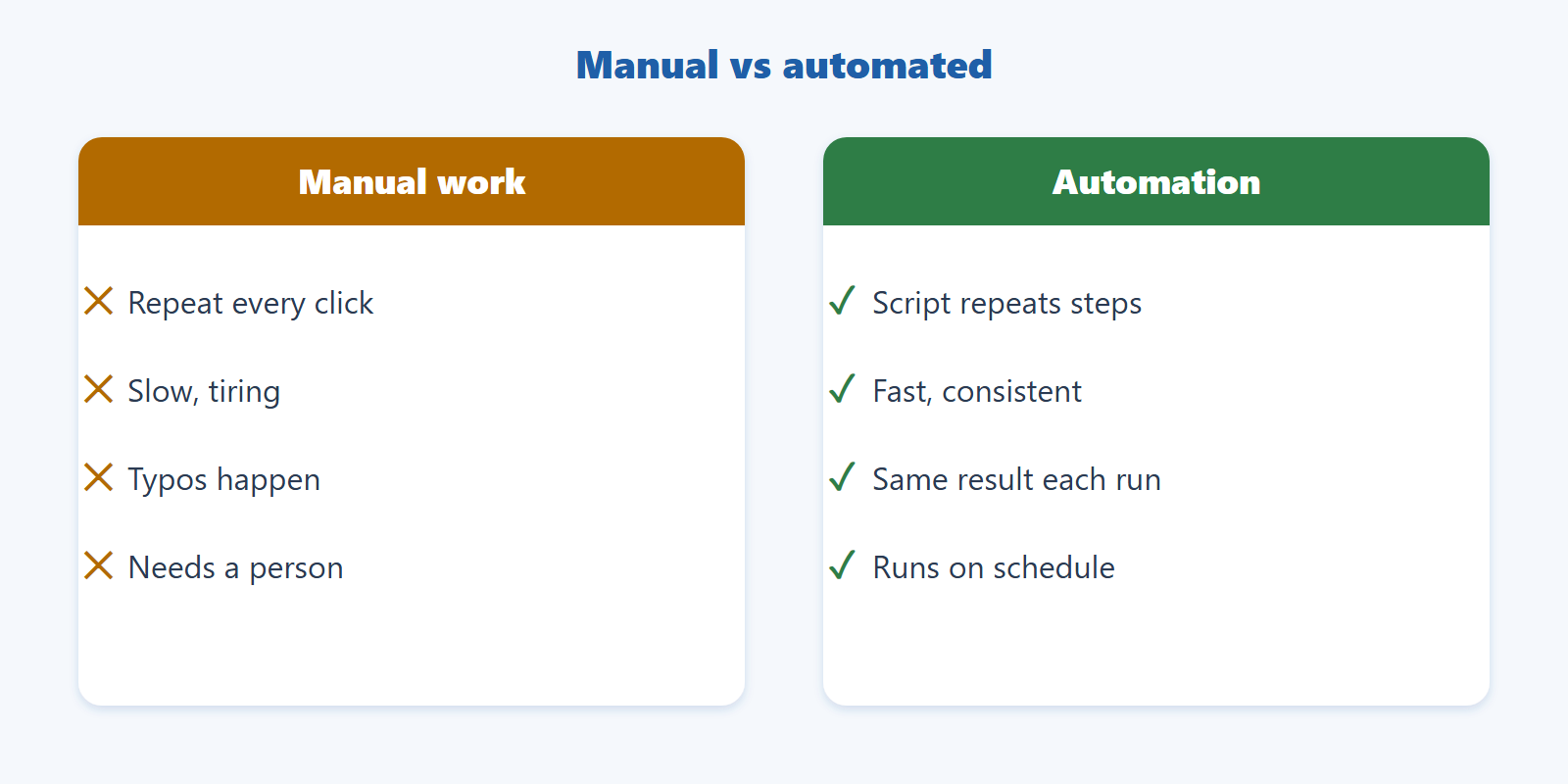
Instead of clicking through every step yourself, you describe the job once as a script and let the machine repeat it as many times as you like. A machine does not get tired, does not mistype, and can run outside working hours.
It belongs to the wider field of process automation. If you want the foundation first, read What Is Automation? An Overview of Process Automation for Beginners on this blog.
How Does Browser Automation Work?
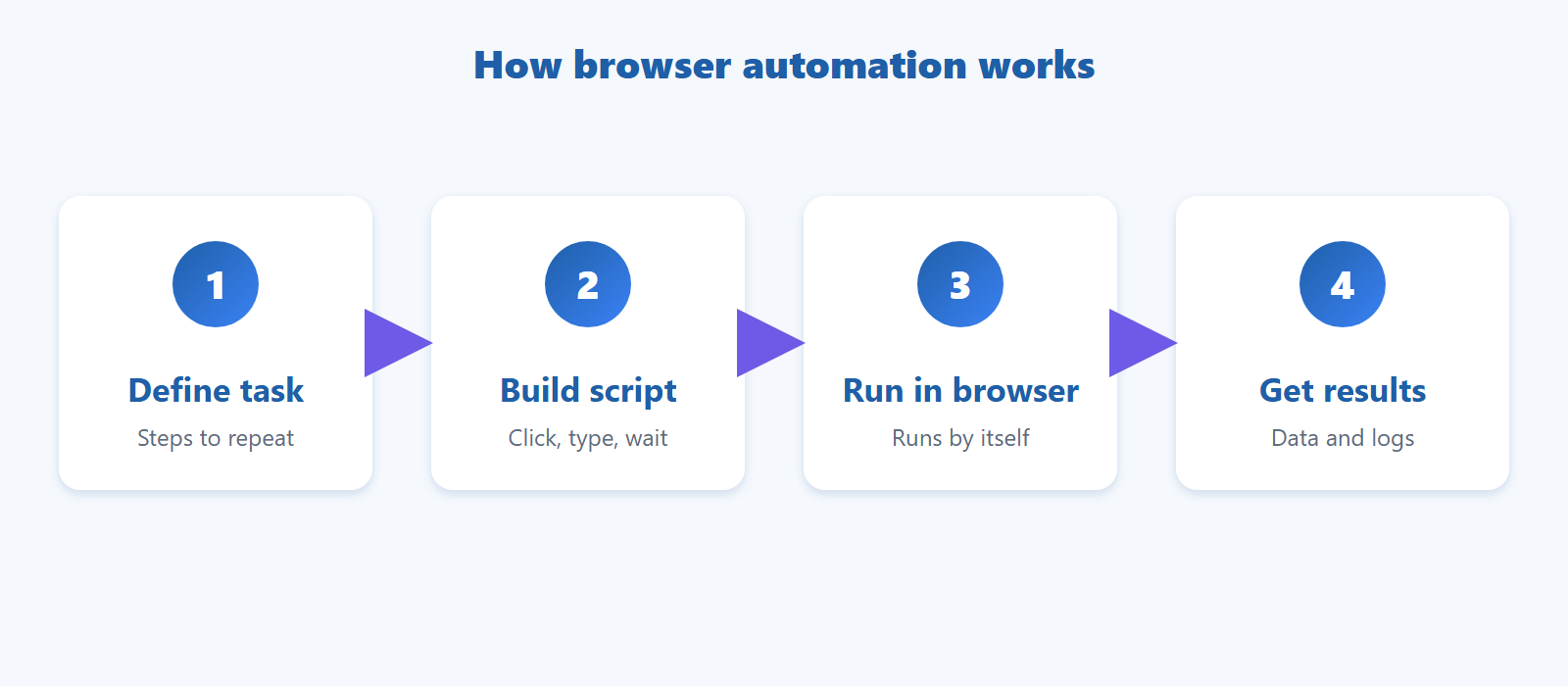
An automation script runs in 4 steps: define the repetitive task, build the script from actions, run it in the browser, then collect the results or logs.
Define the task: list the steps you do by hand, for example sign in, open a report page, download a file.
Build the script: each step is an action such as open a URL, click an element, enter text, wait for a page to load.
Run in the browser: the script locates elements on the page (through the DOM structure) and interacts like a user.
Get results: collected data and success or error status are recorded for you to review.
How Is Browser Automation Different from RPA and Macros?
A macro replays mouse and keyboard actions by position, RPA automates processes across many kinds of applications, and browser automation focuses on controlling web pages through their elements.
Criteria | Macro | RPA | Browser automation |
|---|---|---|---|
Scope | Simple mouse and key actions | Many apps, desktop and web | Web pages in a browser |
How it finds targets | Screen coordinates | UI elements of each application | Page elements (DOM) |
Resilience to UI changes | Low, breaks if positions shift | Medium | Fairly good while elements can still be found |
Best for | Short one-off tasks | Enterprise processes across systems | Repetitive web tasks |
These are not mutually exclusive. Many RPA platforms include browser automation, but if your work happens only on the web, a tool built for browsers is usually lighter and easier to learn.
What Is Browser Automation Used For?
Any task you repeat on the web in the same order can be automated, most commonly bulk form filling, data collection, interface testing and recurring reports.
Bulk form filling from a data sheet such as Excel.
Data collection from public web pages into a spreadsheet.
Website testing: rerun flows like sign-in and checkout after each update.
Recurring reports: sign in, export figures and save the file at the same time every day.
Status checks of orders, prices or page content on a schedule.
Always follow each website's terms of use and automate only on sites and accounts you are allowed to use.
Can You Automate a Browser Without Coding?
Yes. No-code tools let you build a script by choosing and arranging ready-made actions instead of writing code, so non-programmers can do it too.
The traditional route is writing code with libraries such as Selenium or Playwright, which requires programming skills. With a no-code tool you arrange steps such as open a page, click, type, and loop over a list. GPM Automate is one example: you build the script visually in an editor, then run it in the browser. See the GPM Automate documentation for details.
To understand this approach better, read What Is No-Code? The Difference Between No-Code, Low-Code and Traditional Code.
Frequently Asked Questions
Is browser automation legal?
The technique itself is legal and widely used for testing, reporting and data handling. You must follow each website's terms and use it only with accounts and data you have the right to access.
Do I need to know programming for browser automation?
Not necessarily. Writing code with Selenium or Playwright requires it, but no-code tools let you build scripts by selecting and dragging steps.
Does browser automation replace RPA completely?
No. RPA is broader because it can control applications outside the browser. If your work happens only on the web, a browser-focused tool is often enough and simpler.
What happens if a website changes its layout?
A script can break, because it finds elements by page structure. Update the affected step, name steps clearly and review your scripts regularly.
Conclusion
Browser automation hands repetitive web tasks to a machine, saving time and reducing mistakes. You do not need to code to begin: pick one small task, write it down as steps, and build your first script with a no-code tool.
Automate your first task
Read the guide and get GPM Automate to build scripts without code.
About the author
Canh Duc — content lead for GPM Automate, GPM Softwares. Experience building and running browser automation scripts for everyday workflows.
Reviewed by the GPM Softwares content team.
Published: 2026-10-22· Updated: 2026-10-22